Wi-Fi connected but no internet on Windows
Diagnose a wireless link that reaches the router but cannot reach online services.
- Updated
- September 20, 2026
- Reading time
- 16 min read
- Windows support
- Windows 11 · Windows 10
Find the cause. Make one change. Test.
A Wi-Fi connection joins your PC to a local network; it does not guarantee that network can reach the internet. Start by finding out whether the failure affects one app, this PC, or everyone on the network. Follow the result that matches your screen and stop as soon as access works.
Screen Guides describe Windows 11 controls; they are written directions, not screenshots. Press Windows + I to open Settings. On Windows 10, select the taskbar network icon for the Wi-Fi list; Network reset is under Settings → Network & Internet → Status. Command Prompt tests work on both versions.
Before you begin: Keep the Wi-Fi password and this guide available on another device. On a work/school PC, or if this is your only remote connection, collect results and ask IT before changing settings.
Follow the link for your result at each check. These steps are different paths, not a list of repairs to complete. When your websites and app work again, stop.
Jump to a step or command
- Confirm what is actually failing
- Is it this PC or the whole network?
- Reconnect without resetting Windows
- Recreate the saved Wi-Fi connection only if needed
- Run the Windows 11 network diagnostic
- Read the active Wi-Fi address and gateway
- Request a DHCP address when acquisition failed
- Can the PC reach its own router?
- Separate internet reachability from name lookup
- Clear a suspected stale DNS cache
- Reset Winsock only for a matching app-level failure
- Check the wireless adapter in Device Manager
- Have a replacement driver before removing anything
- Network reset is the last Windows repair here
Confirm what is actually failing
Open two unrelated websites you normally use, then try another browser or online app. A cached page alone is not a reliable test: refresh it or request new content. Check that Windows is connected to the intended Wi-Fi name.
Go to: Windows + A → arrow beside Wi-Fi
- Press Windows + A, then open the connection list beside the Wi-Fi control.
- Check the intended network says Connected; test websites even if the status says No internet.
Look for / expected result: Your intended network is marked Connected. The internet status may still report a problem.
- Connected
- Joining Wi-Fi does not prove internet access. Test two websites and another device. Compare another device →
- Not connected
- This is a Wi-Fi joining problem first. Check Wi-Fi controls →
Test two websites and the original app on the same Wi-Fi. Working again? STOP — no more repairs.
Choose the result you see
Several websites or services fail
This matches the problem covered here. Find out whether another device shares it before changing Windows.
Compare another device →Only one website or app fails
Stop this procedure. Check that service, its browser/app settings, and any app-specific VPN or proxy instead. A network reset is not justified by this result.
Keep the evidence for targeted support →Windows cannot join the network
A password or connection error is a different symptom from being connected without internet.
Troubleshoot a network that will not join →The network name is missing
Investigate visibility, range, and the wireless radio before internet settings.
Find a missing Wi-Fi network →The Wi-Fi control is missing
The wireless adapter is the hardware that connects your PC to Wi-Fi. Check whether Windows can see and enable it before using network repair commands.
Inspect the wireless adapter →Is it this PC or the whole network?
Use another device on the exact same Wi-Fi. On a phone, temporarily turn mobile data off so it cannot silently use cellular internet, then refresh two unrelated websites. Turn mobile data back on after the comparison.
Choose the result you see
The other device also cannot get online
Stop the Windows repair path. Check the router’s internet/WAN indicators and the provider’s outage information using mobile data. On your own network, check cables and restart the modem/router according to its manufacturer’s instructions, allowing it to reconnect. This interrupts everyone using it; do not press a factory-reset button. On shared or managed Wi-Fi, contact the network owner. Recheck both devices afterward.
Verify after the network is restored →The other device works
The network can provide internet access. Continue with this PC’s connection, while remembering that router access rules can still affect one device.
Check the PC connection →No second device is available
Try the non-disruptive checks and collect diagnostic results. Keep a network-wide outage as a possibility; do not remove drivers or reset Windows networking solely because websites fail.
Continue with low-risk checks →Reconnect without resetting Windows
Make one change at a time and retry the internet after each. If a public Wi-Fi network requires a sign-in page, complete the legitimate network sign-in first; do not bypass certificate warnings or enter credentials into an unexpected page.
- Press Windows + A. Check that Airplane mode is off and Wi-Fi is on. Move closer to the router if the signal is weak.
- Turn Wi-Fi off and back on, then select the intended network and connect. This briefly interrupts network activity.
- If it still fails, save work and restart the PC normally using Start → Power → Restart.
- A VPN is an app that routes your connection through another network; a proxy is an intermediary configured for internet requests. If you use a personal VPN, compare access with it disconnected only when allowed. If that alone restores access, stop this repair path and troubleshoot the VPN. Do not disable required work security or change an unfamiliar managed proxy.
Go to: Windows + A → Quick Settings
- In Quick Settings, Airplane mode should be off and Wi-Fi on.
- Toggle Wi-Fi off/on, then return to the intended network.
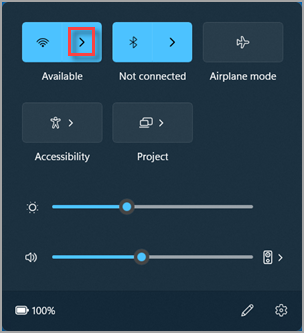
Select the arrow beside Wi-Fi to open the network list. This Microsoft example shows Available, not a connected network; check your own network name after opening the list.
Source: Microsoft. Used with permission from Microsoft.
Open full-size screenshot (new tab) →Look for / expected result: Wi-Fi is on and Airplane mode is off. Open the Wi-Fi list to confirm the connected network.
- Connected again
- Refresh two websites and retry the failed app. If still offline, run the diagnostic. Open Get Help →
- Cannot join
- Only forget the saved profile if the password is available and this network alone will not join. Review the saved profile →
Test two websites and the original app on the same Wi-Fi. Working again? STOP — no more repairs.
Recreate the saved Wi-Fi connection only if needed
Forgetting a network removes its saved connection profile. This is useful after a password/security change or when this PC’s saved connection seems suspect. If neither applies, skip to Get Help.
- Open Settings → Network & internet → Wi-Fi → Manage known networks. Find your network and choose Forget.
- Open the Wi-Fi connection list again, select that network, choose Connect, and enter its password.
Go to: Settings → Network & internet → Wi-Fi → Manage known networks
- Settings → Network & internet → Wi-Fi → Manage known networks.
- Choose Forget only beside the intended network, with its password available.
Look for / expected result: Saved network names appear with a Forget control. Match the correct name before selecting it.
- Correct profile removed
- The saved connection is gone; select the network and enter its password again. Reconnect using the instructions above →
- Wrong name or no password
- Do not forget anything. Ask the network owner for the correct details. Stop and collect help →
Test two websites and the original app on the same Wi-Fi. Working again? STOP — no more repairs.
Go to: Windows + A → arrow beside Wi-Fi → your network → Connect
- Select the intended network in the connection list and choose Connect.
- Enter its password when requested; never share a screenshot containing your password.
Look for / expected result: Windows asks for the network password if needed, then shows Connected after joining.
- Connected but still offline
- The Wi-Fi link is back; test the original websites before further changes. Run Get Help if still failing →
- Password rejected or network absent
- Joining failed; check the password and network availability with its owner. Get help with joining →
Test two websites and the original app on the same Wi-Fi. Working again? STOP — no more repairs.
Run the Windows 11 network diagnostic
Open Start, type Get Help, and open the Get Help app. Search for “connect to network and internet” and select Run network diagnostics when offered. The Network and Internet troubleshooter may also open Get Help from Settings → System → Troubleshoot → Other troubleshooters. Follow its prompts and read any proposed change before accepting it. Availability and wording can vary by Windows build.
Go to: Start → Get Help → search for connect to network and internet
- Open Get Help from Start and search for connect to network and internet.
- Choose Run network diagnostics when offered. Wording and availability can vary.

Look for Get Help in Start. The icon identifies the app; follow the Screen Guide to open its network diagnostic.
Look for / expected result: A network diagnostic is offered when available. If it cannot open or finish, use the local checks below.
- Diagnostic available
- Run it and read the actual outcome before accepting a repair. Choose the matching diagnostic result →
- Unavailable or unable to finish
- An offline diagnostic may be unavailable; read local settings instead. Inspect Wi-Fi configuration →
Test two websites and the original app on the same Wi-Fi. Working again? STOP — no more repairs.
Compare your result: Read the Get Help diagnostic outcome
Go to: Get Help → completed network diagnostic
- Keep the exact detected problem and whether a fix was applied.
- No problem detected does not override a failed website test; use the result branches below.
Look for / expected result: Read whether a problem was found and whether it was fixed. Choose the matching result below even if the app reports no problem.
- Fixed or no problem found
- Test websites yourself. If they still fail, the diagnostic has not resolved the symptom. Inspect configuration if still failing →
- Router or provider issue
- Compare another device before changing this PC. Check the shared network →
Test two websites and the original app on the same Wi-Fi. Working again? STOP — no more repairs.
Choose the result you see
A problem was fixed
Retry the originally failing sites and app. If they work, no more repair is needed.
Verify the fix →A problem was found but not fixed
Record its exact description. Use the local configuration check to distinguish missing network settings from a later failure.
Inspect the active connection →No problem was detected
This does not prove the internet works. If your real tests still fail, inspect what Windows received from the network.
Check network settings →The diagnostic cannot complete or get online
Do not repeat it indefinitely. The following commands run locally without downloading anything.
Continue with local diagnosis →Read the active Wi-Fi address and gateway
An IP address identifies your PC on the network. IPv4 is the dotted-number form used in this check. The default gateway is usually your router: the next stop for traffic going outside that network. DHCP is the service that normally gives the PC these settings automatically. DNS Servers are the services that look up website names.
A network adapter is the hardware or software connection Windows uses; here you need the hardware for Wi-Fi. Command Prompt is a text window where you type instructions for Windows. Open Start, type Command Prompt, and choose Open. Type the command below and press Enter. You do not need administrator rights for this check.
Go to: Start → search Command Prompt → Open
- Open Start and search for Command Prompt, then choose Open.
- Reading configuration does not require Run as administrator.
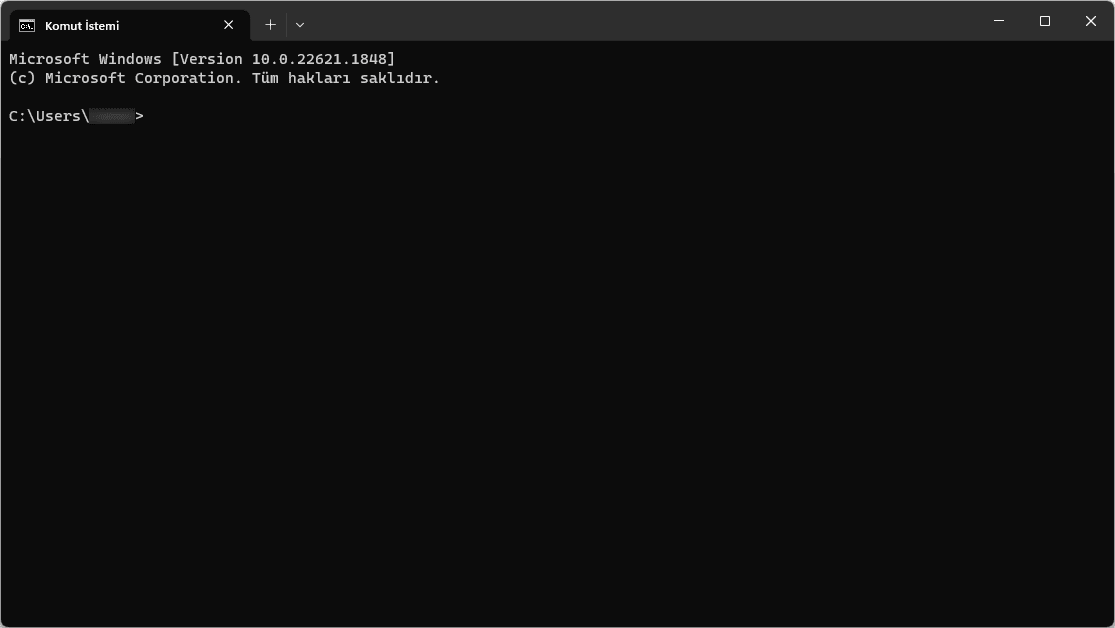
After opening Command Prompt, look for a prompt ending in > and a cursor. This Turkish Windows 11 example shows the open window, not the Start search menu. Type only the command, not the prompt.
Open full-size screenshot (new tab) →Look for / expected result: A text window with a prompt and blinking cursor. Type the command below and press Enter; do not type the prompt itself.
- Prompt ready
- Run ipconfig /all and read only the active wireless connection. Read the configuration →
- Cannot open it
- Do not bypass PC restrictions or substitute repair commands. Ask the PC administrator →
Lists settings for all adapters. Find the Wireless LAN adapter used by your Wi-Fi connection; ignore disconnected, VPN, and virtual adapters for this comparison.
ipconfig /all- Expected result
- In that adapter’s block, find IPv4 Address, DHCP Enabled, Default Gateway, and DNS Servers. Record these together; do not replace values to match an example.
- If your result differs
- If the active Wi-Fi block says Media disconnected, return to the connection list. If the wireless adapter is absent, use the Device Manager check.
Go to: Command Prompt → ipconfig /all → active Wireless LAN adapter block
- Find the active Wireless LAN adapter block, not a disconnected or VPN adapter.
- Read IPv4 Address, DHCP Enabled, Default Gateway and DNS Servers together.
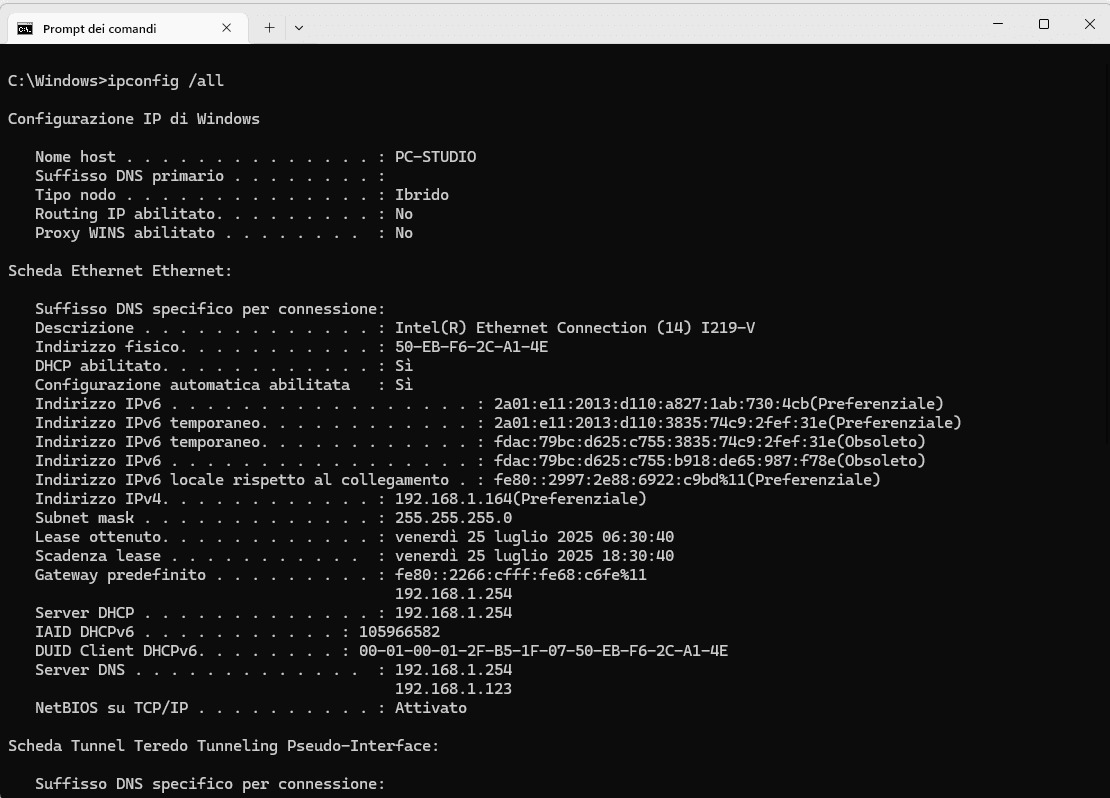
Example output — Italian Ethernet configuration, not your Wi-Fi adapter. DHCP abilitato = DHCP Enabled; Indirizzo IPv4 = IPv4 Address; Gateway predefinito = Default Gateway; Server DNS = DNS Servers. Use your active Wireless LAN block and the English field example below; do not copy these addresses.
Open full-size example (new tab) →EXAMPLE — instructional values, not a capture or settings to copy. Your adapter name and addresses will differ. Run ipconfig /all in a standard Command Prompt.
Wireless LAN adapter Wi-Fi:
DHCP Enabled . . . . . : Yes
IPv4 Address . . . . . : 192.168.1.23 (Preferred)
Default Gateway . . . : 192.168.1.1
DNS Servers . . . . . : 192.168.1.1
Look for / expected result: IPv4 Address identifies this PC; DHCP Enabled says whether settings are automatic; Default Gateway is the route out; DNS Servers lists the name-lookup services. DNS entries may continue on the next line.
- Expected address and gateway
- Configuration exists, but reachability is not yet established. Test the gateway →
- 169.254 address or missing expected gateway
- With DHCP Enabled: Yes, this strongly suggests address assignment failed. Check address acquisition →
- Disconnected, missing or unfamiliar block
- Do not use VPN or Ethernet values as Wi-Fi values; choose the matching configuration branch. Compare the configuration branches →
Test two websites and the original app on the same Wi-Fi. Working again? STOP — no more repairs.
Only if this applies: Recognize a failed DHCP address request
Go to: Command Prompt → ipconfig /all → active Wi-Fi → IPv4 Address
- A 169.254.x.x IPv4 address on an expected DHCP network suggests address acquisition failed.
- Check DHCP Enabled and the gateway; do not treat this as a DNS-cache problem.
Look for / expected result: If DHCP Enabled is Yes and IPv4 begins 169.254., Windows probably did not obtain a normal address from the network. This is a strong clue, not proof the router is broken.
- DHCP is Yes
- A self-assigned address suggests Windows did not obtain normal network settings. Check address acquisition →
- DHCP is No or network uses special settings
- Do not replace static or managed settings with guesses. Ask the network administrator →
Choose the result you see
169.254.x.x on a network that should use DHCP, or no expected gateway
An IPv4 address starting with 169.254. is a strong sign Windows did not obtain a normal address from the network/router. The x characters mean any numbers in those positions. Check DHCP Enabled first; this does not prove the router is broken. A failed address request is not fixed by clearing DNS.
Check address acquisition →The Wi-Fi block says Media disconnected
This connection has not joined a network. Return to the Wi-Fi list before trying address or DNS repairs.
Check the Wi-Fi connection →No wireless adapter is listed
Windows may not recognize the Wi-Fi hardware. Inspect it in Device Manager before trying address or DNS repairs.
Check Device Manager →I cannot tell which connection or address is correct
Do not guess or copy example values into your settings. Keep the report and ask the network owner or trusted support to identify the active Wi-Fi connection.
Collect the report for support →An expected local address and gateway are present
They look configured, but that does not prove they are reachable. Test the gateway next.
Test the path to the router →Static settings, IPv6-only access, or an unfamiliar managed configuration
Do not substitute a guessed IPv4 address or disable IPv6. The IPv4 examples here may not fit this network. Ask its owner to check the configuration.
Collect results for the network owner →Request a DHCP address when acquisition failed
Use this only when the Wi-Fi link is connected and DHCP Enabled is Yes. A disconnected radio, intentional static address, or outage affecting every device needs its own fix first.
- Open Start, type Command Prompt, choose Run as administrator, and approve the Windows prompt. If you cannot approve it, ask the PC administrator.
- In the commands below, replace Wi-Fi with the exact adapter name shown after “Wireless LAN adapter” in your report, keeping the quotation marks. Run one line at a time.
Go to: Start → search Command Prompt → Run as administrator
- Search for Command Prompt in Start and choose Run as administrator.
- Approve the Windows permission prompt only when authorized; otherwise ask the PC administrator.
Look for / expected result: After you approve the permission prompt, the window title includes Administrator. If permission is unavailable, stop and ask the PC administrator.
- Administrator title visible
- Use only the justified repair in this step; elevation is not needed for read-only checks. Review the renewal safety conditions →
- Permission refused or unavailable
- Do not bypass administrator controls. Ask the PC administrator →
Releases the selected adapter’s old automatic address, then asks the network’s DHCP service for usable settings.
ipconfig /release "Wi-Fi"
ipconfig /renew "Wi-Fi"- Expected result
- Renewal displays configuration. Run ipconfig /all again and check for the expected local address and gateway.
- If your result differs
- A DHCP timeout, continued 169.254 address, or missing gateway means address acquisition still needs attention. Check the Wi-Fi link and ask the network owner about DHCP or access restrictions; do not jump to DNS repair. “No adapter” can mean the name is wrong, and “Media disconnected” means the link is not connected.
If the lease still cannot be obtained, stop this repair sequence and collect the error. If the address and gateway are now present but websites still fail, test the gateway.
Can the PC reach its own router?
In Command Prompt, ping the Default Gateway from the active Wi-Fi block. Replace the entire <Default-Gateway> placeholder below, including the angle brackets, with your actual IPv4 gateway before pressing Enter. This tests PC-to-router communication, not the router’s internet connection.
Sends a small test to the gateway. Replace <Default-Gateway> with the gateway you recorded; do not type the angle brackets.
ping <Default-Gateway>- Expected result
- Replies from the gateway show it answered this test. Continue to internet/name checks if websites still fail.
- If your result differs
- Request timed out or Destination host unreachable means this test did not establish reachability. Some routers block ping, so a timeout alone is not proof of a broken link or DNS problem.
Compare your result: Recognize successful gateway replies
Go to: Command Prompt → ping your Default Gateway
- A reply with timing from your gateway shows it answered this test.
- An unreachable error is not success, even if its line begins Reply from.
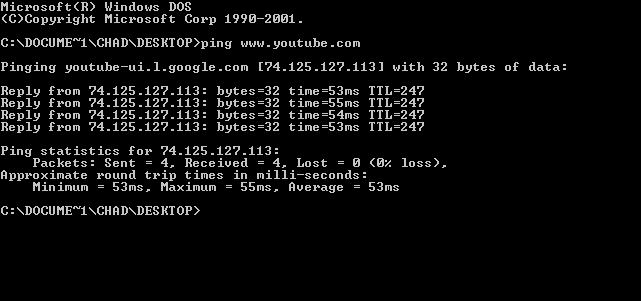
Example reply format from an older Windows terminal, testing a public hostname rather than a gateway. For this check run ping <Default-Gateway>, replacing the entire placeholder with your own gateway. Timed replies from that gateway show local reachability; timeout alone is inconclusive.
Open full-size example (new tab) →Look for / expected result: Successful replies include timing, followed by a packet summary. A line saying Destination host unreachable is not a successful reply.
- Timed replies from your gateway
- The local gateway answered. This does not prove internet access. Check name resolution →
- Timeout or unreachable
- A timeout alone is inconclusive: routers may block ping. Recheck the gateway and compare another device. Choose the unanswered-test branch →
Test two websites and the original app on the same Wi-Fi. Working again? STOP — no more repairs.
Only if this applies: Recognize an unanswered gateway test
Go to: Command Prompt → gateway ping result
- Request timed out means the test received no reply.
- Some routers block ping. Recheck the address and local connection; do not assume DNS failed.
Look for / expected result: Request timed out means no reply arrived. The router may block this test; use the inconclusive-result branch below.
- No reply
- Ping may be blocked. Recheck the actual gateway and compare the same Wi-Fi on another device. Follow the inconclusive-result branch →
- Successful timed replies instead
- The local gateway is reachable in this test. Check name resolution →
Test two websites and the original app on the same Wi-Fi. Working again? STOP — no more repairs.
Choose the result you see
The gateway replies
The local path answered. Check the next layer rather than changing drivers immediately.
Check internet and name resolution →The test fails or is inconclusive
Recheck the copied address, signal, and intended Wi-Fi. Compare with another device or ask the network owner whether ping is blocked. If this PC alone cannot reach local resources, inspect its adapter. Do not assume DNS is the cause.
Inspect the wireless adapter →Separate internet reachability from name lookup
DNS translates a website name into a network address. It matters only after the PC has usable local settings. If the gateway replies but all devices have lost internet, return to the router/provider path.
An optional public-address test, ping 1.1.1.1, can show that an internet destination answers without looking up a name. A timeout is inconclusive because ping traffic may be blocked; it does not establish a DNS fault. Do not change your DNS server to that address just to perform this test.
Run in an ordinary Command Prompt. This asks the configured DNS server directly, separately from the browser’s connection.
nslookup www.microsoft.com- Expected result
- An answer containing addresses for the requested name shows that lookup worked at this moment. It does not prove a website or browser connection works.
- If your result differs
- Timeouts or lookup errors need targeted DNS/server-reachability diagnosis. Clearing the local cache cannot make an unreachable DNS server respond. An “Unknown” server label alone is not a failed lookup if an answer follows.
Compare your result: Read a direct name-lookup answer
Go to: Command Prompt → nslookup www.microsoft.com
- Look for addresses returned for the requested name, not just the DNS server heading.
- A server labelled Unknown can still return a valid answer.
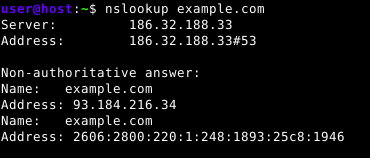
Example command output — this CC0 illustration uses a Unix-style prompt and example.com, not a Windows capture. In Command Prompt, run nslookup www.microsoft.com. Look for the requested name or alias and answer addresses below the DNS server information. Values vary; an answer alone does not prove websites work.
Open full-size example (new tab) →Look for / expected result: Below the server information, an answer names the requested site or its alias and gives addresses. Server: Unknown alone is not a failure.
- Answer includes site addresses
- The DNS service translated the name; this does not prove the browser works. Choose the successful-lookup branch →
- Timeout or no answer
- Name resolution was not established. Server: Unknown alone is not failure. Compare the failed-lookup branch →
Test two websites and the original app on the same Wi-Fi. Working again? STOP — no more repairs.
If direct lookups answer but Windows apps appear to retain an old or failed lookup, try the cache clear below. If names resolve and several apps still fail, check recorded VPN/proxy settings or network-filter changes instead. Do not switch off security software as a general test.
Choose the result you see
Lookup fails
Keep the lookup error and your configured DNS addresses. Use targeted DNS guidance instead of continuing through unrelated resets.
Diagnose the DNS failure →Direct lookup works but a stale cached result is suspected
Clear only the local cache, then retry the failed service.
Clear a suspected stale cache →Lookup works, but there are no socket errors or recent filter changes
A working lookup does not identify the remaining cause. Record which apps fail and their exact errors; seek targeted app or network support instead of resetting Winsock without evidence.
Use the evidence for support →Names resolve but multiple apps report connection/socket errors
Check recent VPN or network-filter changes before considering a Winsock reset.
Review a targeted Winsock repair →Clear a suspected stale DNS cache
The local DNS cache remembers recent name lookups. Clearing it is a targeted check for stale results, not a repair for a missing IP address or router outage. Open Command Prompt with Run as administrator as described in the DHCP step.
Removes Windows’ cached name-lookup entries; it does not change DNS server settings or clear browser history.
ipconfig /flushdns- Expected result
- Windows reports that it successfully flushed the DNS Resolver Cache. Retry the original service to see whether the symptom changed.
- If your result differs
- If elevation is requested, reopen Command Prompt as administrator. If flushing succeeds but the symptom remains, repeating it provides no new evidence; return to the DNS result or the app/VPN path.
Reset Winsock only for a matching app-level failure
Winsock is the Windows interface that network applications use to make connections. Consider resetting it when several unrelated apps have socket errors or a removed network filter left damage, after checking the Wi-Fi link, IP settings, and recorded VPN/proxy configuration. Skip this repair if that evidence does not fit. It does not repair DHCP, a failed router, or an unreachable DNS server.
- Open Start → Command Prompt → Run as administrator. Approve the Windows prompt. Run the command once, read its response, then restart normally.
Rebuilds the catalog used by Windows network applications when its entries are damaged.
netsh winsock reset- Expected result
- A successful reset message says Windows must be restarted to complete it.
- If your result differs
- Access denied or a request for elevation means the command did not complete with the required privileges. Record other errors rather than chaining more resets.
- Restart required
- Save work and use Start → Power → Restart before testing again.
Check the wireless adapter in Device Manager
The network adapter is the hardware Windows uses to connect. Device Manager lists the hardware Windows recognizes and reports device problems. A driver is the software Windows uses to operate that hardware. Right-click Start and choose Device Manager, then select the arrow beside Network adapters to expand it. Look for Wireless, Wi-Fi, WLAN, or an 802.11 model name. Ethernet, Bluetooth, WAN Miniport, and virtual adapters are not necessarily your Wi-Fi hardware. If unsure, compare the model with your PC maker’s specifications.
Double-click the wireless adapter and read General → Device status. Choose only the branch matching that device; do not enable, remove and reinstall it as a sequence.
Go to: Right-click Start → Device Manager → Network adapters
- Right-click Start → Device Manager, then expand Network adapters.
- Look for Wi-Fi, Wireless, WLAN or an 802.11 model; compare the PC maker’s specifications if unsure.
Look for / expected result: A Wi-Fi, Wireless, WLAN or 802.11 device appears. Double-click it → General → Device status to read its condition.
- Normal — no warning
- Windows recognizes the wireless adapter; that alone does not prove internet access. Revisit address evidence →
- Disabled — Enable device offered
- Enable only when policy permits, then reconnect and test. Follow the disabled branch →
- Warning — message or error code
- Record General → Device status before choosing a driver repair. Review driver safety →
- Missing — no identifiable wireless adapter
- Check Other devices; do not assume every unknown device is Wi-Fi. Ask the PC maker or IT →
Test two websites and the original app on the same Wi-Fi. Working again? STOP — no more repairs.
Only if this applies: Recognize a disabled wireless adapter
Go to: Device Manager → Network adapters → right-click your wireless device
- A disabled adapter can offer Enable device in its right-click menu.
- Enable it only when policy permits, reconnect, and test before doing anything else.
Look for / expected result: Enable device is offered when the device is disabled. If you see Disable device instead, it is already enabled; do not choose it.
- Enable device offered
- If authorized, enable it, reconnect and test websites. Compare the adapter result →
- Disable device offered instead
- It is already enabled. Do not disable it. Choose its actual state →
Test two websites and the original app on the same Wi-Fi. Working again? STOP — no more repairs.
Only if this applies: Read an adapter warning and Device status
Go to: Device Manager → double-click wireless adapter → General → Device status
- Double-click the adapter and read General → Device status.
- Record its exact message and code; a warning icon alone does not identify the repair.
Look for / expected result: A warning case has a message and may include an error code. Record the exact text before choosing a repair.
- Error message or code
- Record the exact status; the icon alone cannot identify a fix. Review justified driver options →
- No warning or error
- Do not reinstall solely because websites fail. Revisit network evidence →
Only if this applies: Check the tree when no wireless adapter appears
Go to: Device Manager → Network adapters; also check Other devices if present
- Check Network adapters and any unknown device elsewhere in Device Manager.
- If Wi-Fi hardware remains missing after a normal restart, stop resets and ask the PC maker or IT.
Look for / expected result: If no recognizable wireless device is listed, an unknown Network Controller may appear elsewhere. It needs identification; do not assume every unknown device is Wi-Fi.
- Still absent after a normal restart
- Driver or hardware identification needs support; stop network resets. Contact the PC maker or IT →
- Wireless adapter appears
- Read its actual Device status before acting. Choose its state →
Choose the result you see
Disabled adapter
If you did not disable it intentionally and policy permits, right-click it and choose Enable device. Reconnect and test immediately; stop if access returns.
Verify after enabling →Warning icon or a recent driver-related failure
Record the Device status message and code. Use the manufacturer’s matching driver guidance. If a recent update caused the problem, Properties → Driver → Roll Back Driver may be available; test after rollback before considering reinstall.
Read the driver safety checkpoint →Present with no warning
This confirms recognition, not perfect hardware or internet access. Do not uninstall it just because websites fail. Revisit your address/gateway results; reserve reset for an unresolved PC-specific problem.
Check last-resort conditions →Wireless adapter missing
Check for an unknown device elsewhere in Device Manager and restart Windows normally. If still missing, stop the reset sequence and ask the PC maker or IT to check hardware/driver recognition. DNS commands cannot restore missing hardware.
Collect evidence for support →Have a replacement driver before removing anything
A driver is the software Windows uses to operate hardware such as your Wi-Fi adapter. Use a reinstall for an identified adapter/driver problem, not simply because the PC is offline. A matching manufacturer update or an available rollback (returning to the previous driver) may resolve it without removing the device. Test after either change.
- In Device Manager → Network adapters, right-click the identified wireless adapter and select Uninstall device. Read the device name again before confirming.
- Leave any option to remove/delete the driver package unchecked so the existing package remains available. If the dialog is unclear, cancel and consult the manufacturer.
- Restart Windows normally. Windows may detect the adapter again; if it does not, use the saved manufacturer installer and its instructions. Automatic re-detection is not guaranteed.
- Reconnect to the intended Wi-Fi and test. If the device remains missing or has an error code, collect that result rather than repeatedly uninstalling it.
Only if this applies: Confirm the wireless device before uninstalling
Go to: Device Manager → Network adapters → your wireless device → Uninstall device
- Have the correct replacement driver saved locally first.
- Confirm the device name and leave any driver-package removal option unchecked. Cancel if unsure.
Look for / expected result: Only after saving a replacement driver locally: check the device name and leave driver-package removal unchecked if offered. Cancel if either condition is uncertain.
- Replacement saved and correct device confirmed
- Only for the diagnosed driver problem: leave package removal unchecked, reinstall, restart and test. Follow the driver recovery sequence →
- No recovery driver or uncertain device
- Cancel the dialog. Removing the only connection without recovery can leave you stranded. Arrange a recovery path first →
Test two websites and the original app on the same Wi-Fi. Working again? STOP — no more repairs.
Network reset is the last Windows repair here
Consider this only when another device has internet on the same Wi-Fi, this PC’s adapter is recognized, and the earlier results still point to a Windows configuration problem. Do not use it for a network-wide outage, missing hardware, a single failing app, or an unresolved DHCP/DNS service problem. You can stop and seek help instead.
- Save work. Open Settings → Network & internet → Advanced network settings → Network reset.
- Read the on-screen warning. Only when you are ready, choose Reset now and confirm Yes. Allow the restart to complete.
- Reconnect to Wi-Fi. Restore only your required, known network/VPN configuration, then retry the original sites and app. Check the network profile is appropriate for the network you joined.
Only if this applies: Review the Network reset settings page
Go to: Settings → Network & internet → Advanced network settings → Network reset → Reset now (last resort only)
- Settings → Network & internet → Advanced network settings → Network reset.
- Read the warning before Reset now; this is a disruptive repair, not a test.
Look for / expected result: A warning explains the reset and restart. Read it and prepare recovery details before considering Reset now.
- Earlier targeted checks exhausted on this PC
- Save work, the Wi-Fi password, replacement driver and required VPN settings before Reset now. Review the last-resort sequence →
- Other devices also fail or recovery is not ready
- A PC reset is not justified or safe to start. Use the network/support path →
Test two websites and the original app on the same Wi-Fi. Working again? STOP — no more repairs.
Only if this applies: Confirm Network reset only when ready
Go to: Network reset → confirmation after Reset now
- After Reset now, read the confirmation before choosing Yes.
- If recovery details are not ready, cancel rather than starting the reset.
Look for / expected result: Windows asks for confirmation. Choose No or cancel if you have not prepared your driver, Wi-Fi password and required VPN settings.
- Ready and reset justified
- Confirm only now. Windows reinstalls adapters and resets networking; restart, reconnect and restore required VPN/virtual-network configuration. Verify after restarting →
- Not ready or uncertain
- Choose No or cancel. No reset is needed just to inspect this page. Arrange support first →
Test two websites and the original app on the same Wi-Fi. Working again? STOP — no more repairs.
Check the original problem, not just a status icon
- Refresh the two previously failing websites and retry the original app on the intended Wi-Fi.
- Restore any required VPN and confirm the access you actually need still works. If only the VPN fails, treat that as the remaining problem.
- After a repair that required restarting or reconnecting, confirm access survives that restart/reconnection. Do not use the Wi-Fi status label alone as proof.
Internet works? You’re finished.
Stop making network changes. You do not need the remaining repairs, a driver reinstall, or Network reset. Note the one change that helped and keep your working settings.
Use the evidence to choose the next path
Stop repeating repairs if the network fails on other devices, DHCP still cannot supply an address, the adapter remains missing, or a managed setting requires approval. If Network reset did not solve a PC-specific failure, use the recorded results with the PC maker, network owner, or IT instead of cycling through resets.
- Several devices fail: give the network owner or internet provider the same-Wi-Fi test and router status.
- Only this PC fails: record the Get Help result, active Wi-Fi IPv4 address, gateway, DHCP status, ping result, and any exact command error.
- Addressing works but names fail: continue with targeted DNS diagnosis.
- Adapter missing or showing an error: give the PC maker or IT its model, Device Manager code, driver version, and recent changes. See the Device Manager guide.
Share network reports privately with trusted support; redact identifiers before posting publicly. Do not include passwords or recovery keys. Review the safe troubleshooting workflow before broader recovery.